mp.MATT PAIGEAI FOR THE 99%.

YOUR FREE, OPEN-SOURCE STUDIO

Screw it.

I’m giving away
my AI video
studio.

Raw takes. A visual storyboard. An edit in your style.
Even an animated carousel. The full studio is yours.

Codex+Claude Code
Made here. In my own style.
PRODUCT STORIES
MOTION WITH A PURPOSE
THE VIDEO IS THE PROOF
THE WHOLE
STUDIO.$0

Too good to gatekeep.

I could have put this behind a paywall. I’m giving you the studio, the workflow and the code. Make it yours.

Your taste.
Your starting point.

References and techniques give your AI something better than a blank prompt.

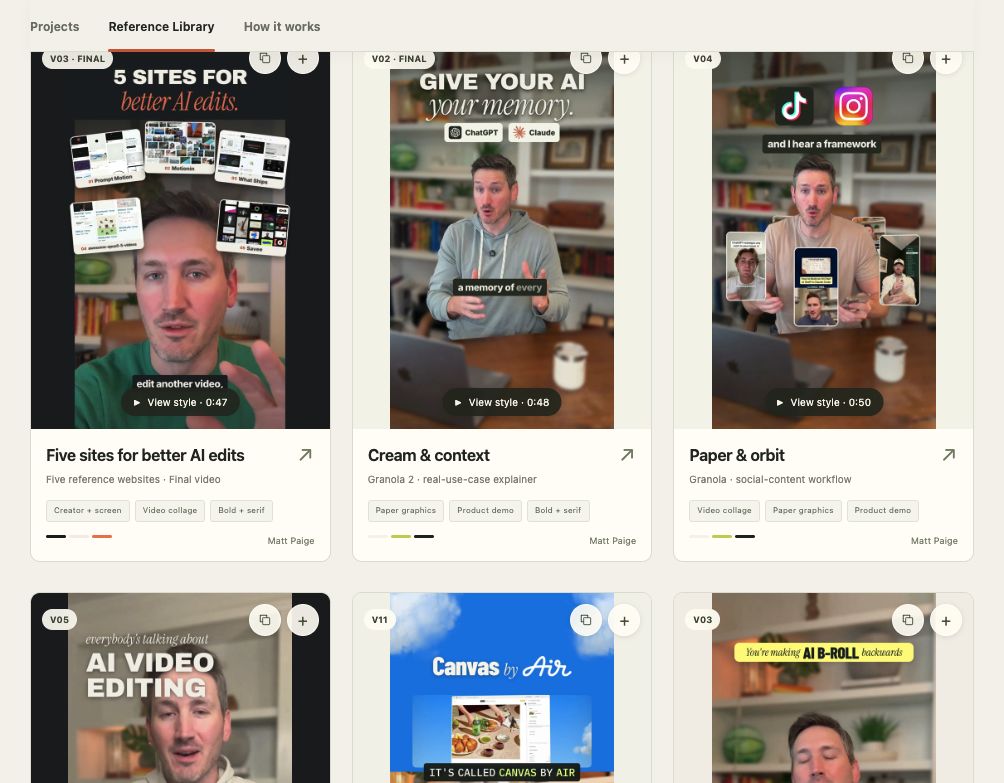
Your reference library

Show your AI
what good looks like.

Add a video from another creator. Keep what caught your eye, then bring that visual context into your editing chat.

An example direction

“I love the cards above the creator. Use that idea for my five websites.”

Actual saved videos in Matt’s Reference Library, ready to bring into a new edit
Save other creators’ work and your own finished videos.
Orbiting elements

One technique.
Many ways to use it.

A useful moment, its source and your notes—ready for the next edit.

@tenfoldmarc · cards@taki.gpt · iconsMatt · five playing videos
Playing: my own Granola edit. Source variations saved in the studio.
Your technique collection

Borrow the move.
Make it yours.

You don’t need the whole video. Keep just the card reveal, punch-in or transition you love, with the exact moment attached.

Use that technique as a reference for your own footage, story and style.

Examples from my studio. Yours starts with your own collection.

01 / START WITH THE STORY

The bad takes go.
The good stuff stays.

Bring the raw footage—gaps, resets and all. Build a tight cut from your best takes, then review it before the design begins.

2:08RAW RECORDING
0:48CHOSEN TAKES
RAW FOOTAGE
THE CLEAN CUT

02 / STORYBOARD FIRST

Align on the look.
Then make the edit.

Review the frames, copy and movement before production. Change the plan while it’s still a plan.

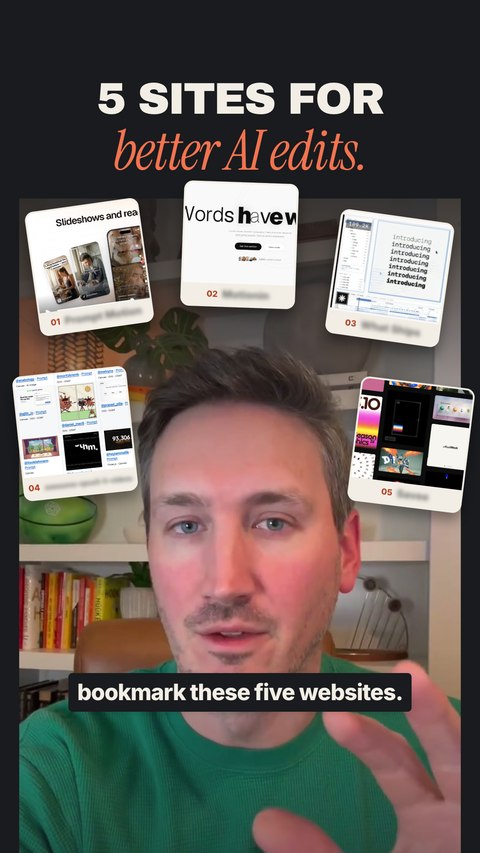
Five sites for better AI editsA real storyboard from my studio · 9 selected scenes
0:48 video

Swipe through the plan

1 / 9
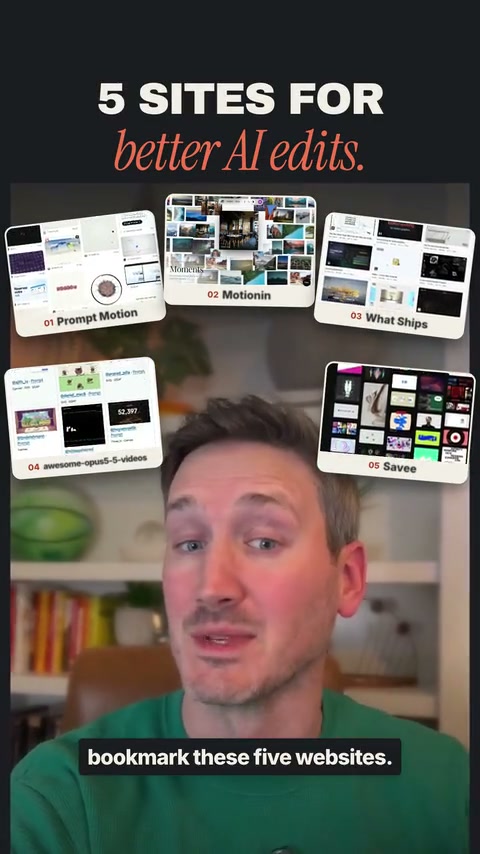
SCENE 010.0–3.3s
Saved storyboard frame 01: Five previews, one promise

Five previews, one promise

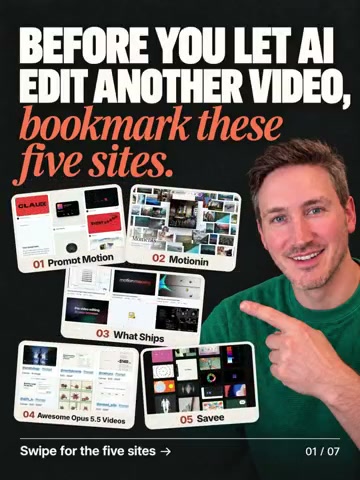
“Before you let Claude or Codex edit another video, bookmark these five websites.”
Visual
Five site cards drop around the creator. Keep the face clear.
Movement
Stagger the arrivals, then hold the complete wall.
SCENE 036.0–8.7s
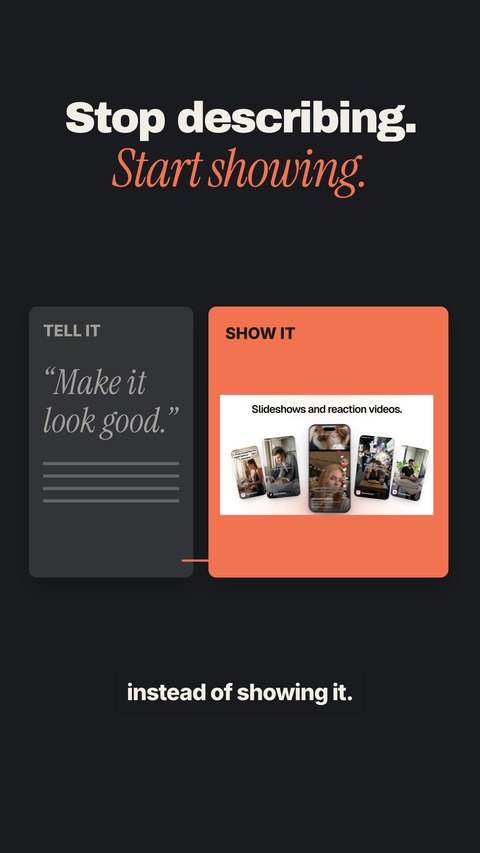
Saved storyboard frame 03: Show it. Don’t just describe it.

Show it. Don’t just describe it.

“…you’re telling AI what you want instead of showing it.”
Visual
Place the real visual reference beside a text-only direction.
Movement
Slide the note aside. Give the reference the bigger space.
SCENE 048.7–12.0s

Saved storyboard frame 04: Open a curiosity loop

Open a curiosity loop

“And these five websites fix that, and the last one can even connect directly to your AI.”
Visual
Tease the fifth site and add an early comment CTA.
Movement
Reveal the connection promise before the five-site tour.
SCENE 0512.0–14.9s
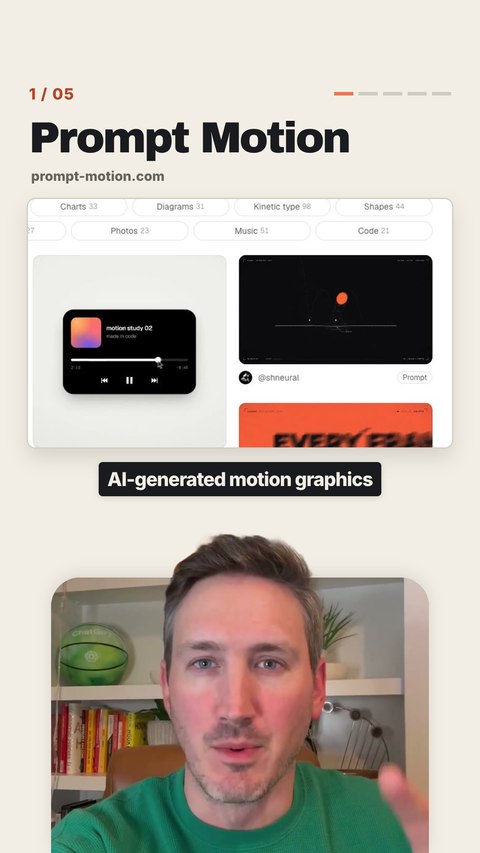
Saved storyboard frame 05: Keep the creator in the picture

Keep the creator in the picture

“First is Prompt Motion. It’s a massive library of AI-generated motion graphics…”
Visual
Show the real site above a smaller creator window.
Movement
Let the top of Matt’s head overlap the window edge.
SCENE 0614.9–17.6s
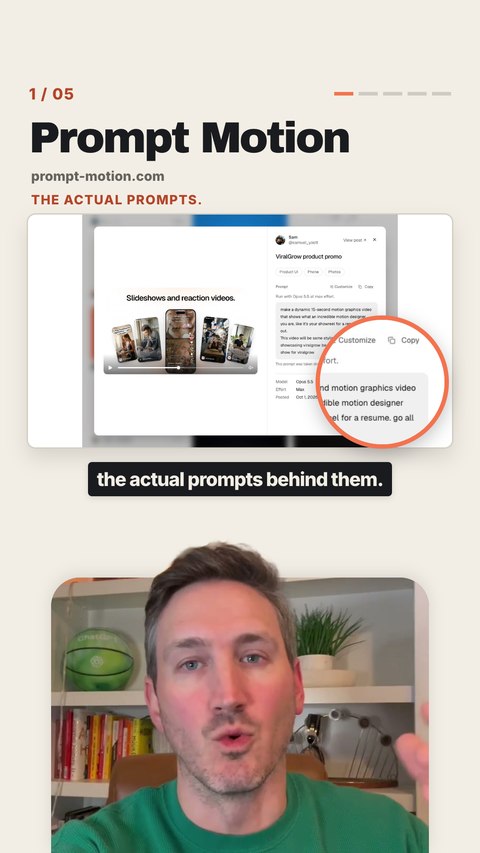
Saved storyboard frame 06: Show the example and its prompt

Show the example and its prompt

“…including the actual prompts behind them.”
Visual
Focus one real animation, then the prompt behind it.
Movement
Move from the gallery into a readable close-up.
SCENE 0717.6–20.7s
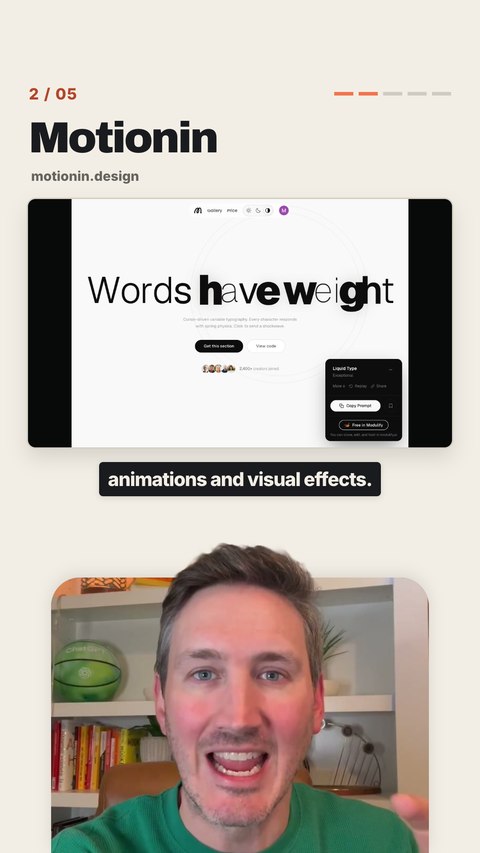
Saved storyboard frame 07: Make the interaction visible

Make the interaction visible

“Motionin has some insane animations and visual effects.”
Visual
Show the type changing in response to the cursor.
Movement
Start close on the letters, then reveal the wider demo.
SCENE 1132.5–36.1s
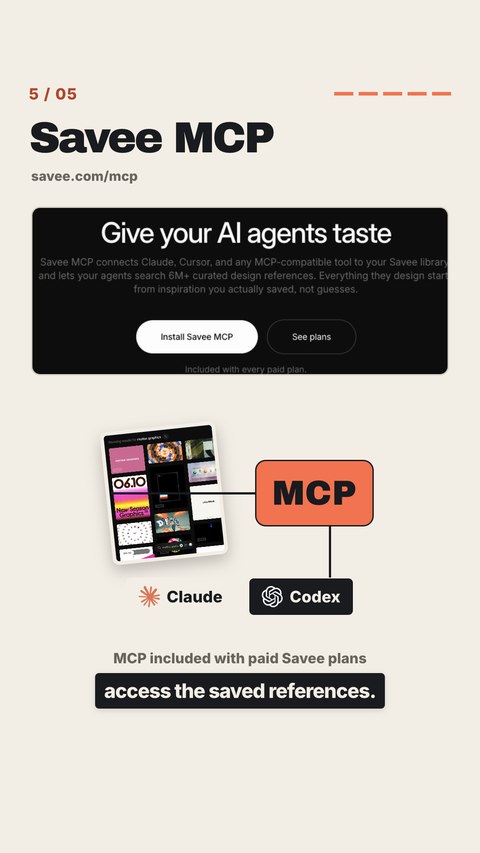
Saved storyboard frame 11: Explain the connection

Explain the connection

“And it even has an MCP so your AI can access the saved references.”
Visual
Use a simple reference library → MCP → AI diagram.
Movement
Bring the saved references together, then connect the tools.
SCENE 1440.6–44.3s
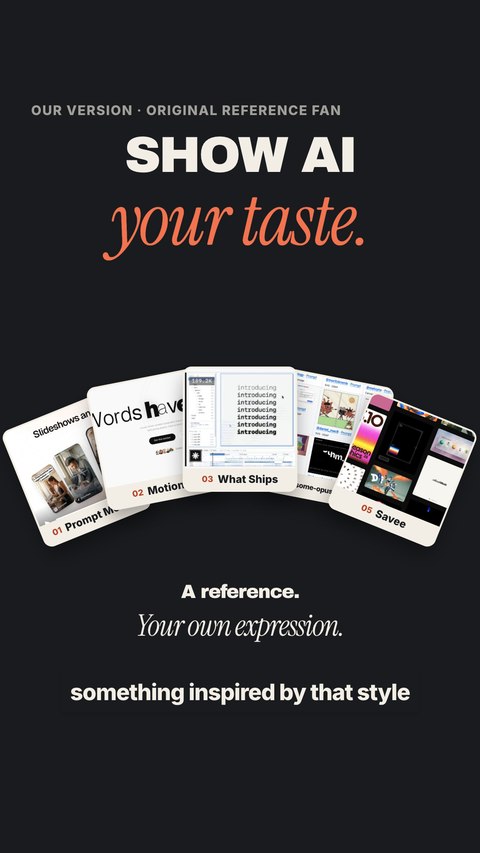
Saved storyboard frame 14: Make an original interpretation

Make an original interpretation

“…and have it create something inspired by that style for your video.”
Visual
Fan out our own website cards using our own palette and copy.
Movement
Build from one reference into five of our own sources.
SCENE 1544.3–47.7s
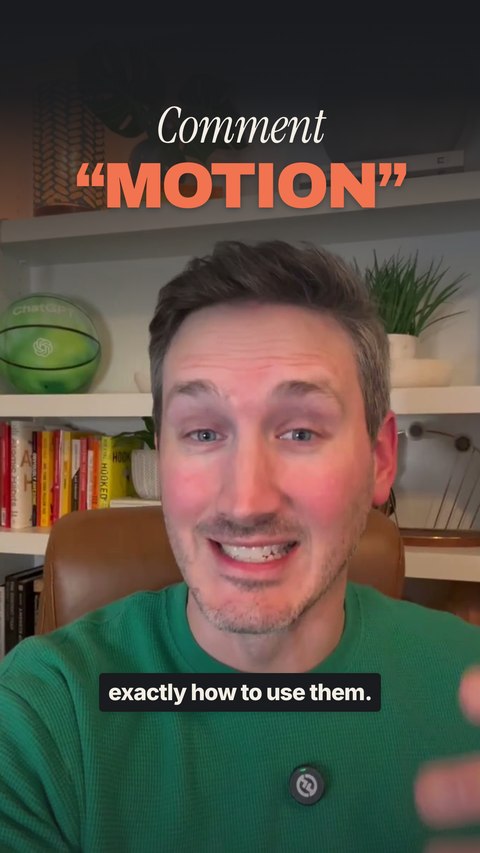
Saved storyboard frame 15: Land the call to action

Land the call to action

“And comment MOTION and I’ll send you all five websites and exactly how to use them.”
Visual
Return to the creator and make MOTION the dominant word.
Movement
A small push-in. End on the keyword and a warm delivery.

Less guessing. Fewer wasted tokens.Agree on the visual direction before spending tokens and money on edits you’ll need to redo.

FROM THE FINISHED VIDEOA reference becomes
your interpretation.

03 / MAKE IT FEEL LIKE YOU

Bring the reference.
Build your own look.

Show your AI what good looks like. Then shape the captions, B-roll, motion and sound around your story. Give feedback in chat until it feels right.

  • Captions that follow the story
  • B-roll that shows the point
  • Motion with a reason to move
  • Sound that makes the moment land

It gets more you.
With every project.

Your preferences, references and finished edits stay in your studio. The next project starts with more of what you already love.

01

Keep your preferences.

Save the pacing, caption style and feedback you want your AI to remember.

02

Keep the work.

The cut, storyboard and final stay together. A favorite edit becomes a new reference.

03

Start one step ahead.

Point to that video or technique in your next chat. Build on what worked.

One project. Every version.

Keep the process.
Reuse the good stuff.

The spoken cut, storyboard and finished assets stay together in your studio.

Build your studio
Actual five-sites project checkpoint: Spoken cut
Spoken cut
Actual five-sites project checkpoint: Storyboard
Storyboard
Actual five-sites project checkpoint: Final video
Final video
Actual five-sites project checkpoint: Motion carousel
Motion carousel

THE FULL OPEN-SOURCE SETUP

$0.
YOURS TO USE. YOURS TO CHANGE.

The studio.
The workflow.
The whole thing.

Get the complete project and the prompt to set it up on your computer. Add your footage. Save your references. Build a studio around your style.

Send me the launch

The software is free. Your AI plan and optional paid tools are separate. Mac-first beta, built and tested on Apple Silicon.

A FEW THINGS YOU MIGHT BE WONDERING

Good questions.

What exactly do I get?

The complete open-source studio, the installation prompt and the instructions needed to set it up. It includes your project home, review checkpoints, a reference library and the workflow for creating videos and carousels with your AI.

Is the studio actually free?

Yes. The software is free and open source. Use it, inspect it and make it your own. Your AI subscription and any optional paid services are separate.

What do I need to run it?

A computer with a compatible local coding assistant, such as Codex or Claude Code. The current media workflow has been validated on Apple Silicon Macs. Other setups still need testing. You use your own footage, references and accounts.

Do I still direct the edit?

Yes. Work in chat with your AI. Review the spoken cut, align on the storyboard and refine the edit. You decide when it is ready. The studio keeps the versions and decisions together.

Do I get your videos and reference collection?

Your installation starts with an empty personal collection. Add your own footage and references. The work shown on this page comes from my existing studio and demonstrates the process.

What will the waitlist email me?

The official release, setup prompt and studio launch updates. The beta code is already public; this list is for the launch delivery. Joining here does not subscribe you to my Substack.

YOUR NEXT CREATIVE CHAPTER

Your footage.
Your taste.
Your studio.